- Google Analytics 4 groups outside links under the Referral group in the Traffic Acquisition report.
- Standard reports show root domains; viewing exact article links requires the Page Referrer field in an Exploration.
- Excluding payment tools and subdomains stops split visits.
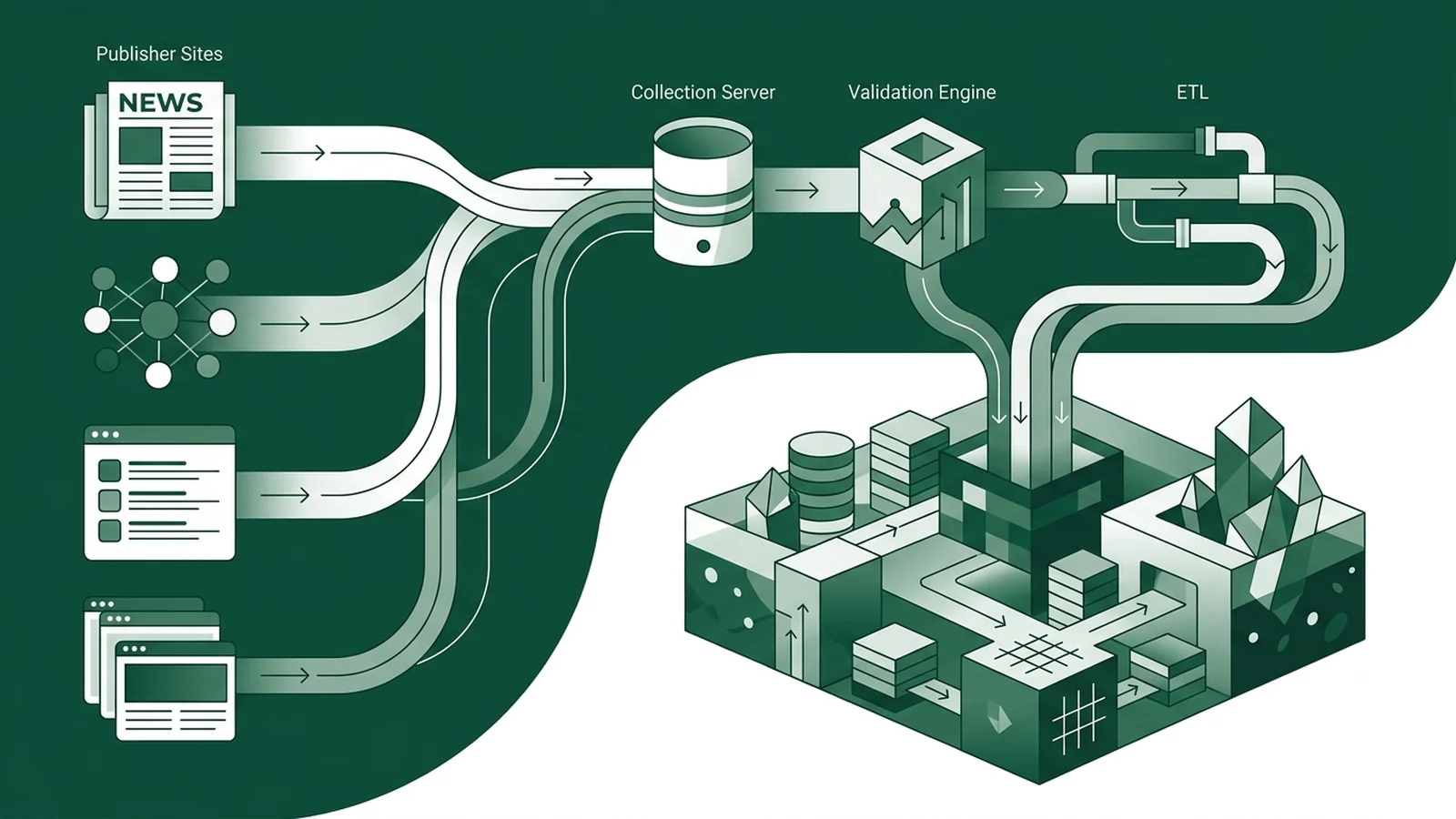
To check referral traffic in GA4, open Reports, select Traffic acquisition, and filter for Referral. This view reveals incoming external website visits. Isolating exact linking URLs requires creating a custom Exploration with the Page referrer dimension. Checking referral sources protects marketing spend on backlinks.
Referral metrics give direct proof. Our guide on tracking guest post referral traffic and enquiries shows how to value partner sites. Our guide to finding unique monthly visitors for websites shows how to check publisher traffic first. Real web data stops wasted spend.
Understanding GA4 referral data and attribution scopes
Google Analytics 4 categorizes incoming traffic into standardized default channel groups. A session is classified as a referral when an external website directs a user via an un-tagged link passing a valid document referrer header. Unless manual UTM parameters override the attribution or the domain matches configured search engines, GA4 attributes the visit directly to the referral channel.
The platform tracks data in two main ways. User acquisition looks at the first channel that brought a visitor to your site. Traffic acquisition looks at the specific link that started each fresh visit. For backlink audits, traffic acquisition gives you the best timeline. Session metrics show new visits right away.
Standard reports group incoming links by root domain name. If an industry blog links to your site, the report shows only the root web address. It hides the full path. Seeing the full linking page requires building a custom exploration.
How to check referral traffic in GA4 standard reports
Checking top-level referral traffic takes just two minutes in standard reports. Follow these steps to find your data.
Log in to your Google Analytics 4 property. Click the Reports option in the main left navigation bar. Open Acquisition and select the Traffic acquisition report. This view lists visits, users, and key events across all marketing channels.
Scroll down to the primary table. The first column displays Session default channel group. Find the Referral row. Click Add filter at the top of the screen. Set the field to Session default channel group, choose exactly matches, select Referral, and click Apply.
Click the dropdown arrow at the top of the first column. Switch the view to Session source / medium. The table updates at once. It lists every referring domain alongside the referral tag.
Examine average user engagement duration and key event completions for each referring domain. Traffic spikes paired with near-zero interaction often signal bot traffic or automated web scrapers rather than authentic human visitors. Quality editorial publisher placements consistently deliver genuine audience engagement.
| Reporting Tool | Primary Field | Data Level | Best Use Case |
|---|---|---|---|
| Traffic Acquisition | Session default channel group | Broad channel group | Top-level marketing spend review |
| Traffic Acquisition | Session source / medium | Domain name (e.g., example.com) | Spotting top referring partner websites |
| Freeform Exploration | Page referrer | Full URL path | Checking exact backlink placement links |
| Freeform Exploration | Landing page + Page referrer | Source path to destination link | Testing page interest and backlink value |
Uncovering exact linking URLs with GA4 explorations
To see the exact article URL that sent a visitor, you must use the Page referrer dimension. This field stores the full document link passed by the browser.
Click Explore in the left menu. Choose Blank to start a fresh canvas. Name the report Referral Backlink Audit in the top left box.
Click the plus icon next to Dimensions. Search for and import Page referrer, Landing page, and Session source. Next, click the plus icon next to Metrics. Import Sessions, Active users, and Engaged sessions into your list.
Drag Page referrer into the Rows area. Drag Sessions and Engaged sessions into the Values box. The canvas updates with full linking URLs. You can now see which exact blog post or page sent each reader.
To remove internal test clicks and search engines, scroll down to the Filters box. Select Page referrer, choose does not match regex, and enter your own domain name. This step keeps only outside links.
Filtering unwanted referrals and payment gateways
Referral noise is a common analytics issue. When a buyer pays for an order, they may go to PayPal or a bank portal. When the payment ends, the portal sends the buyer back to your receipt page. Without proper settings, GA4 treats this return as a new referral visit. This mistake erases the original campaign source.
Fixing this issue takes only a few minutes. Click Admin in the lower left corner. Open Data Streams and select your active web stream. Click Configure tag settings, then click Show all to view extra options. Select List unwanted referrals.
Enter the domains of payment tools and login portals. Set the match rule to Referral domain contains. When excluded, the analytics platform ignores the payment gateway jump. The system keeps the original acquisition channel intact.
Auditing publisher referral quality and traffic authenticity
Not all referral traffic represents good reader interest. Teams must audit incoming visitor flows to keep links safe from bot traffic. Checking our guide on traffic proof beyond screenshots shows that real publishers show steady visit trends. Healthy links build stable visitor growth.
Quality links follow search crawler rules, using standard HTML anchor tags with direct links. Our guide on qualifying paid links with sponsored and nofollow tags explains how to manage link deals safely. Matching counts to Search Console keeps profiles clean.
Frequently asked questions
Where is the referral report in GA4?
Open Reports and go to Acquisition, then Traffic acquisition. Filter for the Referral group or switch the view to Session source / medium.
How do I see the full referring URL instead of just the domain?
Open Explore and pick a Blank canvas. Add the Page referrer and Landing page fields next to Sessions to see the full source link.
Why do payment processors show up as referrals?
Payment portals send buyers off-site during checkout and back again. Exclude portal domains in Admin under Data Streams and List unwanted referrals.
Can I track referral traffic from specific guest posts?
Yes. If links have campaign tags, view Session campaign. If links are organic, check Page referrer to match visits to the article link.
Sources
The rules and field steps in this guide come from official web documentation:
- Google Analytics Developers: Google Analytics 4 setup and data stream guide
- Google Analytics Developers: Recommended events and page referrer parameter reference
- Google Search Central: Google guidelines on crawlable links and anchor tags
- MDN Web Docs: HTTP Referer header specification and browser transmission rules
Need genuine guest post placements that send real referral visitors?
RankPulse vets publishers for real organic traffic, clean Google indexing, and verified audience engagement. Every placement is backed by our 6-month replacement guarantee.